
If your inventory is stored across multiple warehouse locations, you have the option to configure how your orders are assigned for fulfillment. The settings you choose here directly impact how your orders flow through the system, especially when inventory levels vary across locations.
Below is a breakdown of your options to help you decide what works best for your business:
1. Use Only In-Stock Warehouses (Recommended for Fastest Fulfillment)
✅ If selected:
- Orders will only be assigned to a warehouse that has enough available inventory to fulfill the entire order.
- The system will still prioritize the warehouse closest to the destination, but only if it has enough inventory.
- If the closest warehouse cannot fulfill the order due to low inventory, but another warehouse farther away can, the order will be routed to the farther warehouse to avoid delays.
Example:
- You have warehouses in California and Texas.
- An order is shipping to Florida.
- The Texas warehouse is closer but does not have enough stock to fulfill the order.
The California warehouse has full stock.
➡ The order will ship from California to avoid a backorder situation.
2. Do Not Use Only In-Stock Warehouses (Location Priority Overrides Inventory Availability)
✅ If not selected:
- Orders will always be routed to the warehouse closest to the destination, regardless of inventory levels.
- If the closest warehouse cannot fulfill the full order, the order will sit in backorder status until enough inventory arrives to fulfill the entire order at once.
- The system will not automatically look at other warehouses with available stock in this scenario.
Example:
- You have warehouses in California and Texas.
- An order is shipping to Florida.
The Texas warehouse is closer but does not have enough stock to fulfill the order.
➡ The order will be assigned to Texas and placed on backorder until additional stock arrives at that location.
Which Option Should You Choose?
| Business Need | Suggested Setting |
|---|---|
| Fastest possible fulfillment | ✅ Use Only In-Stock Warehouses |
| You want orders to always route based on location, even if it causes backorders | ❌ Do Not Use Only In-Stock Warehouses |
How to Update Your Warehouse Configuration Settings
Follow these steps to adjust your settings:
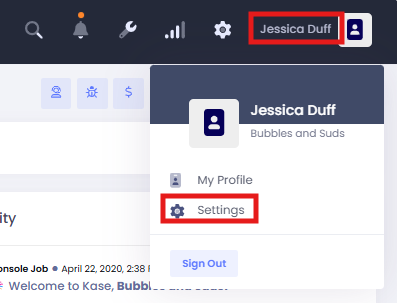
- Log into your account.
- Navigate to Settings.
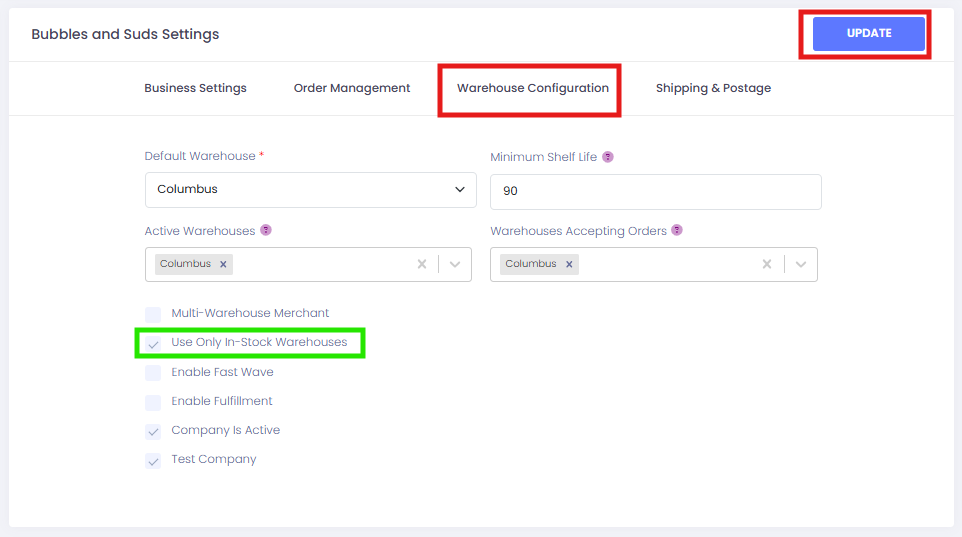
- Select Warehouse Configuration (or relevant tab name in your portal).
- Check or uncheck the box for Use Only In-Stock Warehouses based on your preference.
- Be sure to Update your changes.
Example Screenshot Below:
Questions?
Our team is happy to help review your current setup or recommend the best configuration based on your business model. Reach out to our support team: Kase-Fulfillment@Kase.com for assistance!
Comments
0 comments
Please sign in to leave a comment.