
Purpose
This article explains how to:
- Create shipping methods in Shopify that vary by destination and order weight
- (Optional but recommended) Map those shipping methods in Kase to control carrier selection, delivery speed, and rate shopping behavior
- Understand what happens if shipping methods are not mapped
Correct setup ensures accurate checkout options for your customers and smooth order flow into fulfillment.
Part 1: Creating Shipping Methods in Shopify
(Destination + Weight Based)
Shopify determine which shipping method appears at checkout based on:
- Shipping Zone (destination)
- Weight conditions (Total cart weight)
Step 1: Create Shipping Zones (Destination-Based)
- Log in to your Shopify Admin
-
Navigate to Settings → Shipping and delivery
- Under Shipping, click the shipping profile you want to edit (Most stores use "General Shipping Rates")
- Next to the relevant Location Group, click Add Shipping Zone
- Name the zone (Examples:
Alabama,California,Colorado) - Select the countries/regions for that zone
- Click Done, then Save
Important Destination Rules
- A country/region can only belong to one shipping zone per location group
- For international shipping, ensure destinations are also active under Settings → Markets
Step 2: Add Weight-Based Shipping Rates Inside Each Zone
- In Settings → Shipping and Delivery, open the shipping profile
- Locate the shipping zone you want (for example,
US) - Click Add rate
- Choose:
- A Transit time, or
- A Custom Rate name (recommended if you plan to map in Kase)
- Enter the Price
- Click Add conditions
- Select Based on item weight
- Enter the weight range
- Click Done, then Save
You may create multiple rates per zone, such as:
- 0-1 lb
- 1-5 lbs
- 5-20 lbs
Shopify will automatically display the correct method at checkout based on total cart weight.
Optional: Free Shipping Over a Weight Threshold
To offer free shipping above a certain weight:
- Click Add rate
- Set Price = $0
- Click Add conditions → Based on item weight
- Enter a minimum weight
- Click Done, then Save
Optional: Free Shipping over a specific Spend Threshold (Order Price-Based Shipping Method)
If you want to offer free shipping when a customer's order total reaches $100 (Example amount) or more, you can create a price-based shipping rate in Shopify. This must be set up separately for each shipping zone where you want the offer to apply.
Steps to Create Free Shipping for $100+ Orders:
- Log in t your Shopify Admin
- Navigate to Settings → Shipping and delivery
- In the Shipping section, click the shipping profile you want to edit (most stores use "General Shipping Rates")
- Locate the shipping zone where the offer should apply
- Click Add rate
- Enter a Rate Name (Example: Free Shipping $100+)
- Set the Price to $0
- Click Add conditions
- Select Based on order price
- Enter 100 as the minimum price
- Click Done, then Save
Important Notes:
- This rule applies per shipping zone, so repeat these steps for each zone (California, Texas, Columbus etc.)
- If you plan to control carrier selection or delivery speed, this shipping method can also be mapped in Kase using the same method name
- If not mapped, Kase will default to Bulk Rate and select the lowest-cost available shipping option
Checkout Verification (Required)
After creating or editing rates:
- Use Checkout Preview in Shopify
- Confirm the correct shipping methods appear for:
- Different destinations
- Different cart weights
Part 2: Mapping Shipping Methods in Kase
(Optional, but Recommended)
Mapping shipping methods in Kase gives you control over carrier selection, delivery speed, and rate shopping rules.
⚠️If you do not map a method, Kase will still ship the order — See "What Happens If a Method Is Not Mapps?" Below.
Step 1: Navigate to Shipping Method Settings in Kase
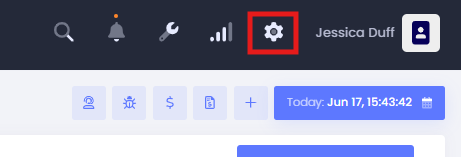
- In the Kase dashboard, click the gear icon (⚙️)
-
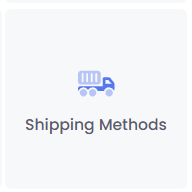
Select “Shipping Method”
-
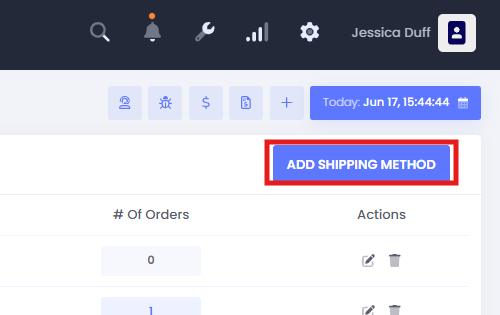
Click “Add Shipping Method”
Step 2: Fill Out the Mapping Form
-
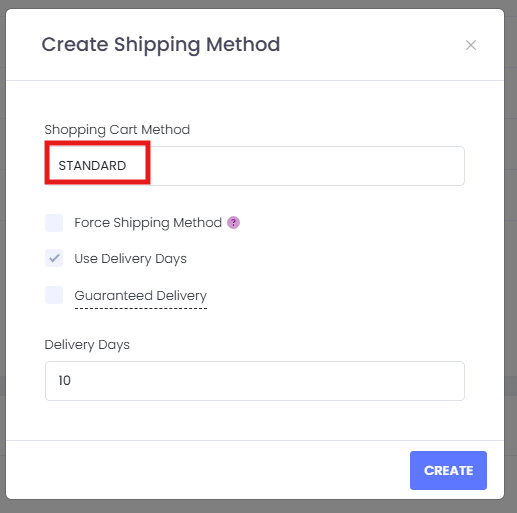
In ‘Shopping Cart Method’, input the exact name as it appears in Shopify (this field is case- and space-sensitive)
- Choose one of the following options:
- Force Shipping Method – use this if you would like to be notified and have your order delayed if the desired service level cannot be found.
- Use Delivery Days – allows Kase to rate shop for the lowest-cost option that meets your delivery speed.
- Guaranteed Delivery Days – restricts rate shopping to only guaranteed delivery options for faster or time-sensitive shipments.
- Click “Create” to save.
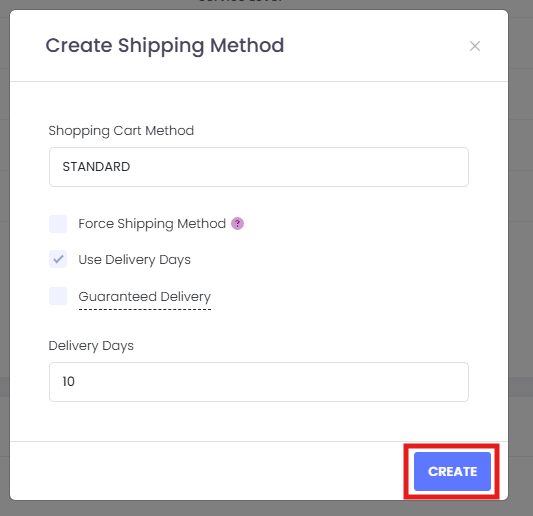
✅ Tip: Most of our clients use names like STANDARD , EXPRESS , 2-DAY , or FREE SHIPPING , but you're free to customize.
🔍 How Kase Matches Shipping Methods
When setup is complete, Kase will automatically match the shipping method selected by your customer on each order. However, there are exceptions where automatic matching may fail:
⚠️ Common Reasons for Mismatched or Unmapped Methods:
- The method in Shopify doesn’t match the method mapped in Kase exactly (even differences in capitalization or spacing matter)
- The method is unavailable for the package size or destination
- No method is mapped in Kase at all
🛠️ What Happens If No Match is Found?
If no match is found, your order will default to:
Kase Bulk Rate
This is a fallback method used when no mapping exists or when the requested method is unavailable. Kase will search all available rates from our carrier partners and select the least expensive economy option.
🔄 Advanced Options: Conditional Mapping & Blacklisting
Kase allows for flexible shipping configurations:
- Custom Conditions – Add pricing tiers by weight or order total in Shopify
- Blacklisting Methods – Prevent specific carrier services from being selected (This is available to all clients on the bottom of your "Shipping Methods" Page)
- Adding Your Own Carrier Accounts – Use your negotiated rates by connecting your own carrier credentials (separate guide available here)
📋 Summary of Available Method Mapping Options
| Setting | Description |
|---|---|
| Shopping Cart Method | Must match Shopify name exactly |
| Force Shipping Method | You will be notified and the order will be delayed if the desired service level cannot be found. |
| Use Delivery Days | Rate shop based on estimated delivery days |
| Guaranteed Delivery | Only include guaranteed delivery options |
| Fallback (Bulk Rate) | Used when no mapped method is found |
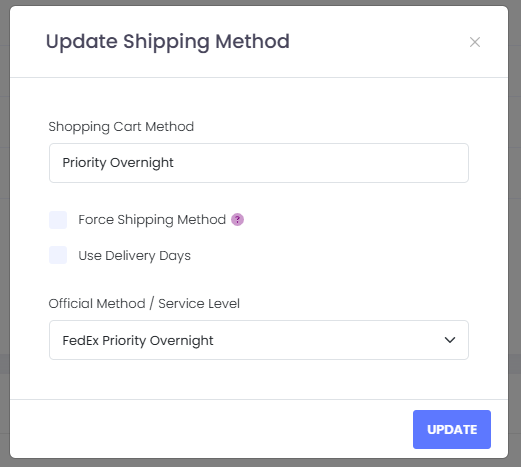
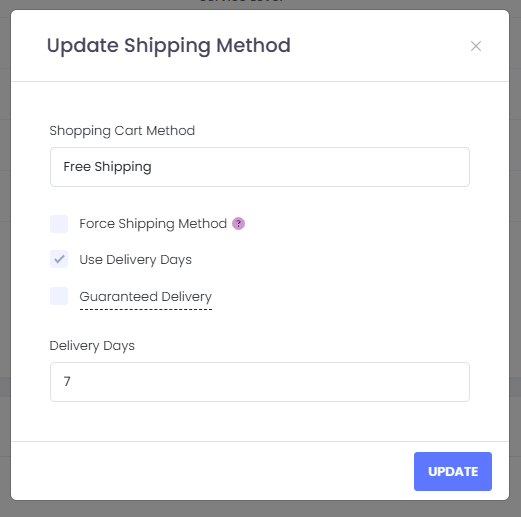
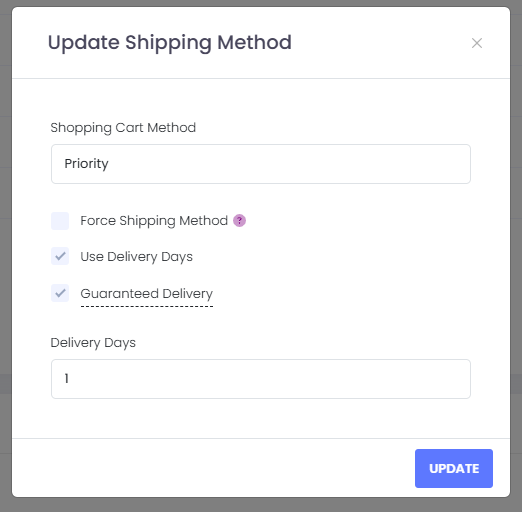
📬 Examples of Commonly Used Shipping Methods
Below are some of the most common shipping methods our clients use and how they appear in both Shopify and Kase. These names should match exactly when entered into the “Shopping Cart Method” field in Kase.
PO Box Disclaimer:
PO Box Addresses cannot ship via UPS. If the order is sent with a UPS Mapped shipping method, our system will select the next lowest-cost option for delivering to PO Boxes as UPS does not service or deliver to PO Boxes.
❓ Need Help?
Correct shipping setup is critical to successful fulfillment. Our onboarding team will assist you during setup, and we’re always happy to make adjustments.
Comments
0 comments
Article is closed for comments.