
To ensure your SKUs flow correctly into our system, you'll need to assign each product variant to the ShippingTree location within your Shopify store. Once assigned, SKUs typically sync to our system within 2-5 minutes.
✅Step-by-Step: Assigning SKUs to Our Location in Shopify
- Log into your Shopify Admin.
In the left-hand menu, select "Products"
Click into the product you want to assign
Scroll down to the "Variants" section and select the variant
Scroll to the "Inventory" section and click "Edit Locations"
Check the box for "ShippingTree" to assign the variant to our location
- Click "Save"
🔄Not Seeing Your SKU Flow Through?
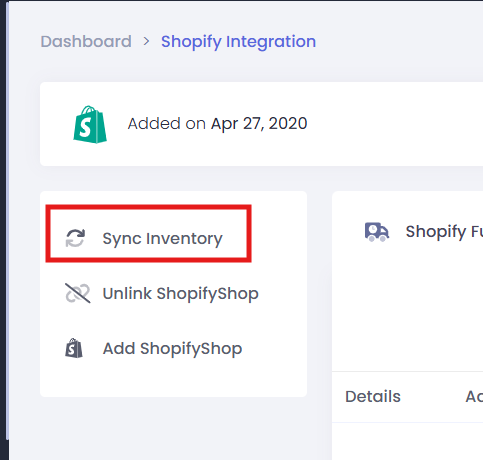
Please allow 2-5 minutes for SKUs to automatically sync to our system after being assigned. If the SKU does not appear in our system, follow these steps to manually sync:
- Navigate to the Tog Wheel (⚙️) in the top-right corner of your Kase dashboard
- Select "Shopify Integration"
- Click "Sync Inventory"

✅How to Confirm a SKU was Synced
To verify the SKU synced successfully:
- Navigate to the Tog Wheel (⚙️) > Shopify Integration.
- Select "Shopify Integration"
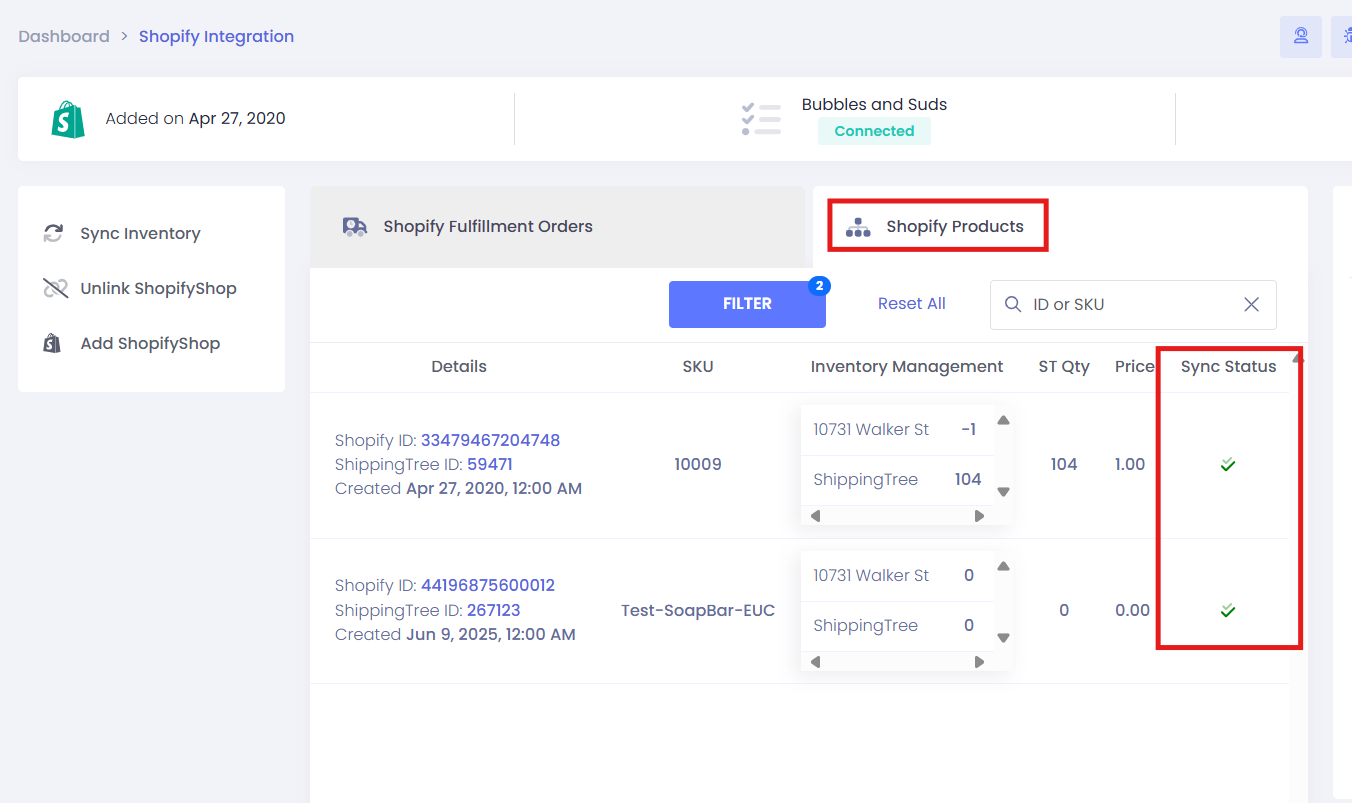
- Click "Shopify Products"
- You'll see a ✅ green checkmark next to the SKU if it is properly assigned to our location.

Tips for Better Visibility
If you're not seeing your SKU in Shopify:
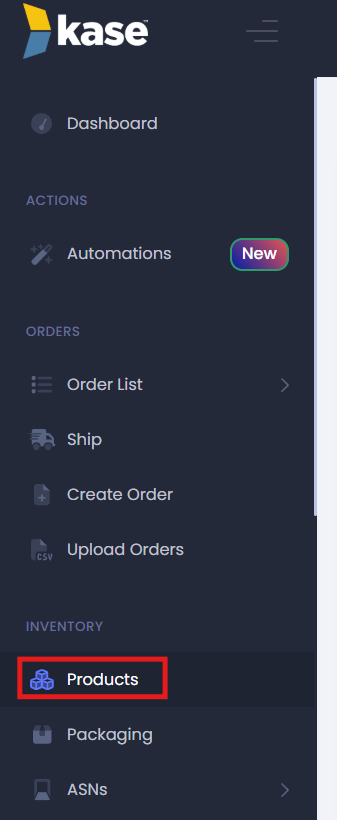
- Navigate to your Products page
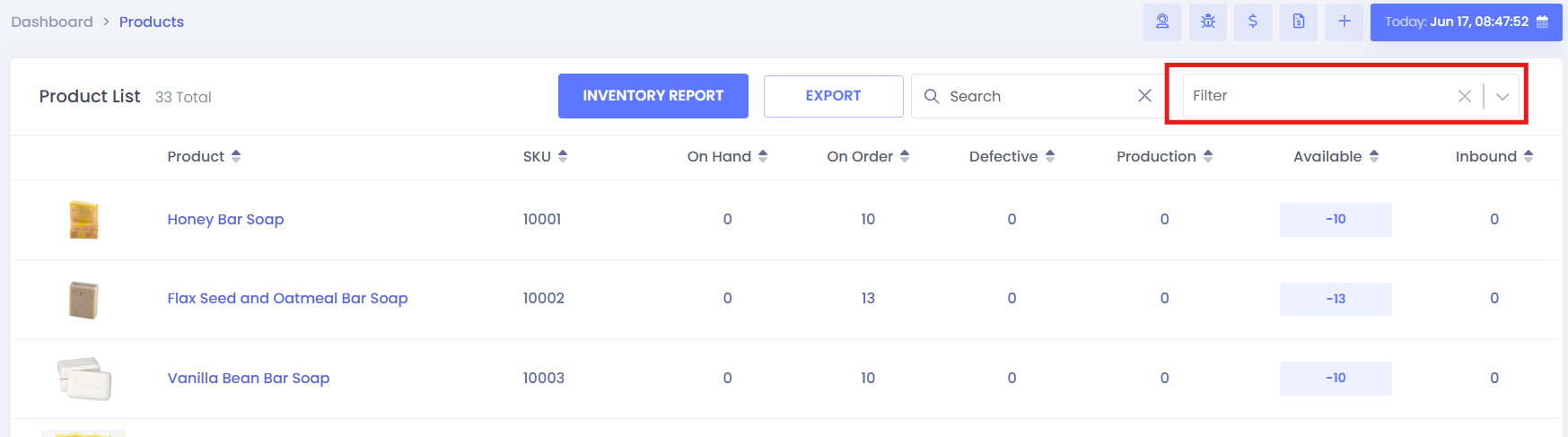
- Make sure all filters are cleared so you can view your full product list
If you have any questions or run into issues, feel free to reach out to your onboarding specialist or our support team!
Comments
0 comments
Please sign in to leave a comment.