
To ensure your Shopify store is fully integrated with Kase and your shipping method mappings and pack-out rules are functioning properly, we require a few test orders from your team. Below is a step-by-step guide on how to create and submit test orders for validation:
✅ Step-by-Step Instructions
Step 1:
Log in to your Shopify Admin and navigate to the Orders section.
Click “Create order” at the top right.

Step 2:
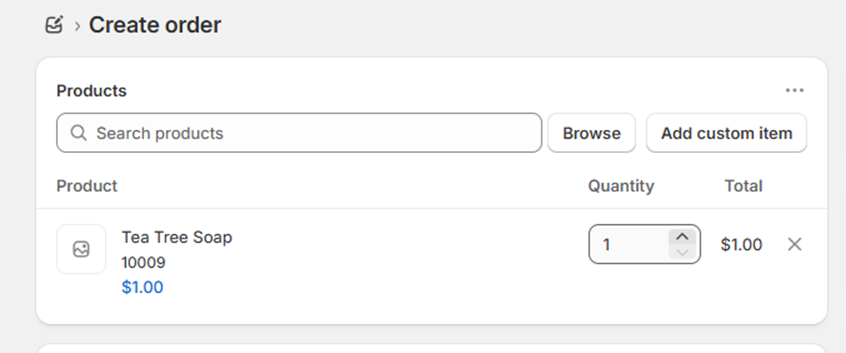
Select the products you would like to include in the order.
Make sure to test out all SKUs that require unique packaging or have different fulfillment needs.
Step 3:
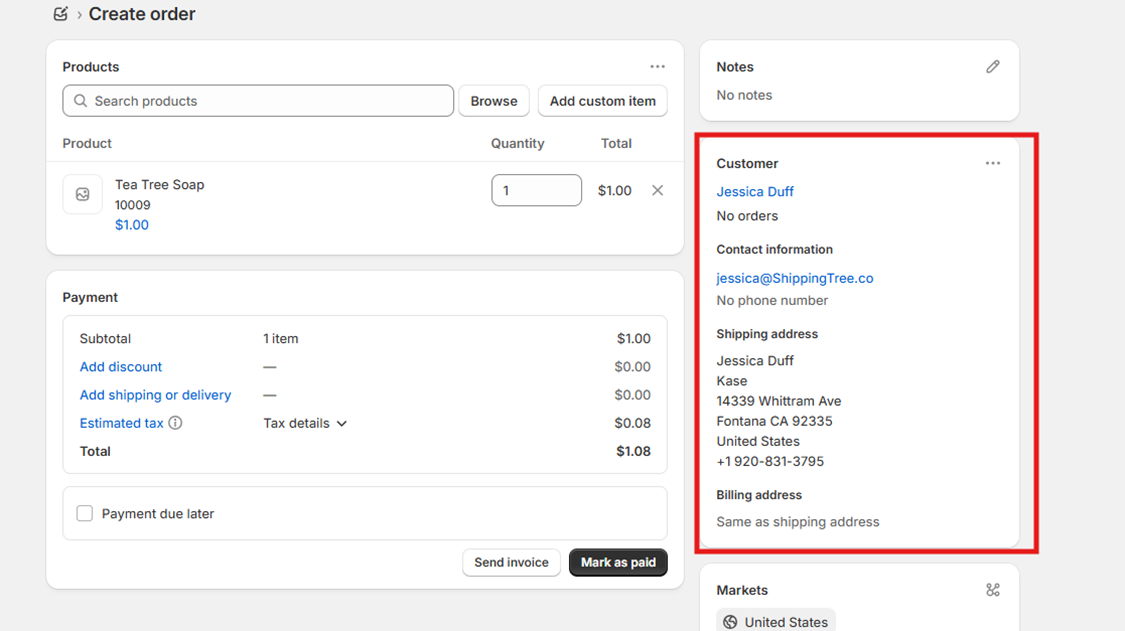
Add a shipping address. You can use your business address or an internal test address.
Step 4:
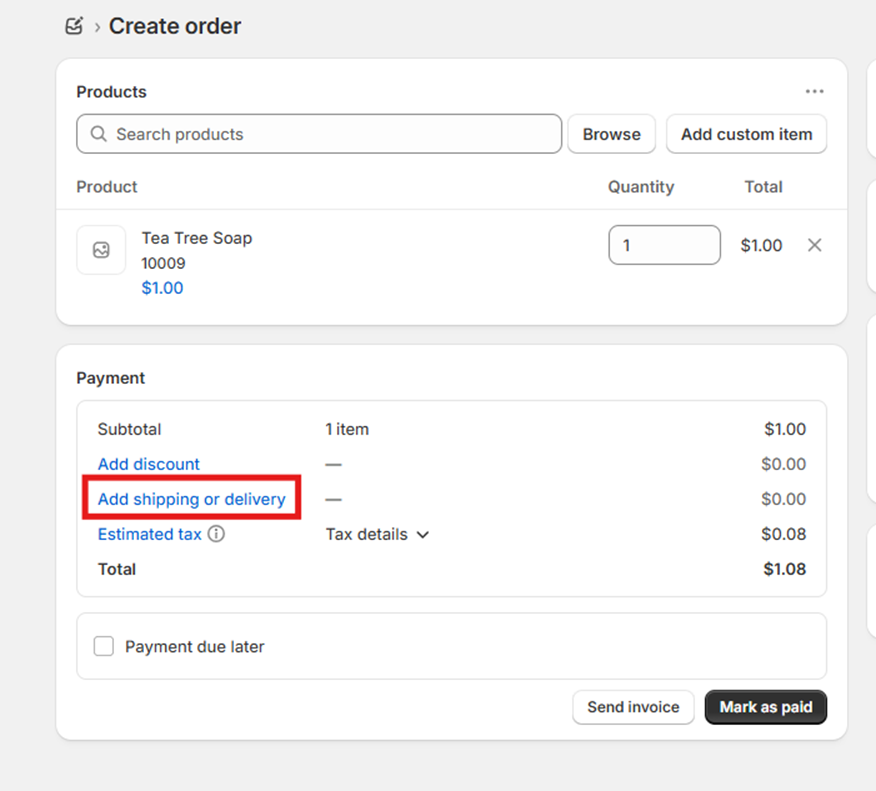
Click “Add shipping or delivery” to select the shipping method.
Step 5:
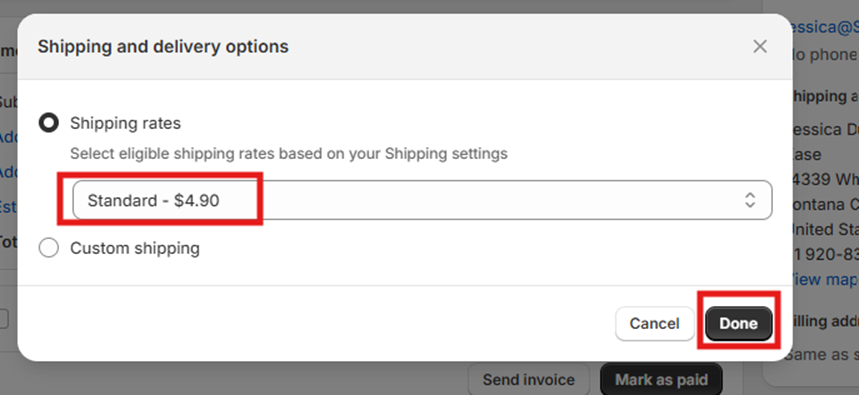
Select a shipping method from the dropdown and click “Done.”
➡️ You’ll want to create one test order per shipping method you’ve mapped into the Kase app. This ensures each is selecting the correct carrier/method as intended.
Step 6:
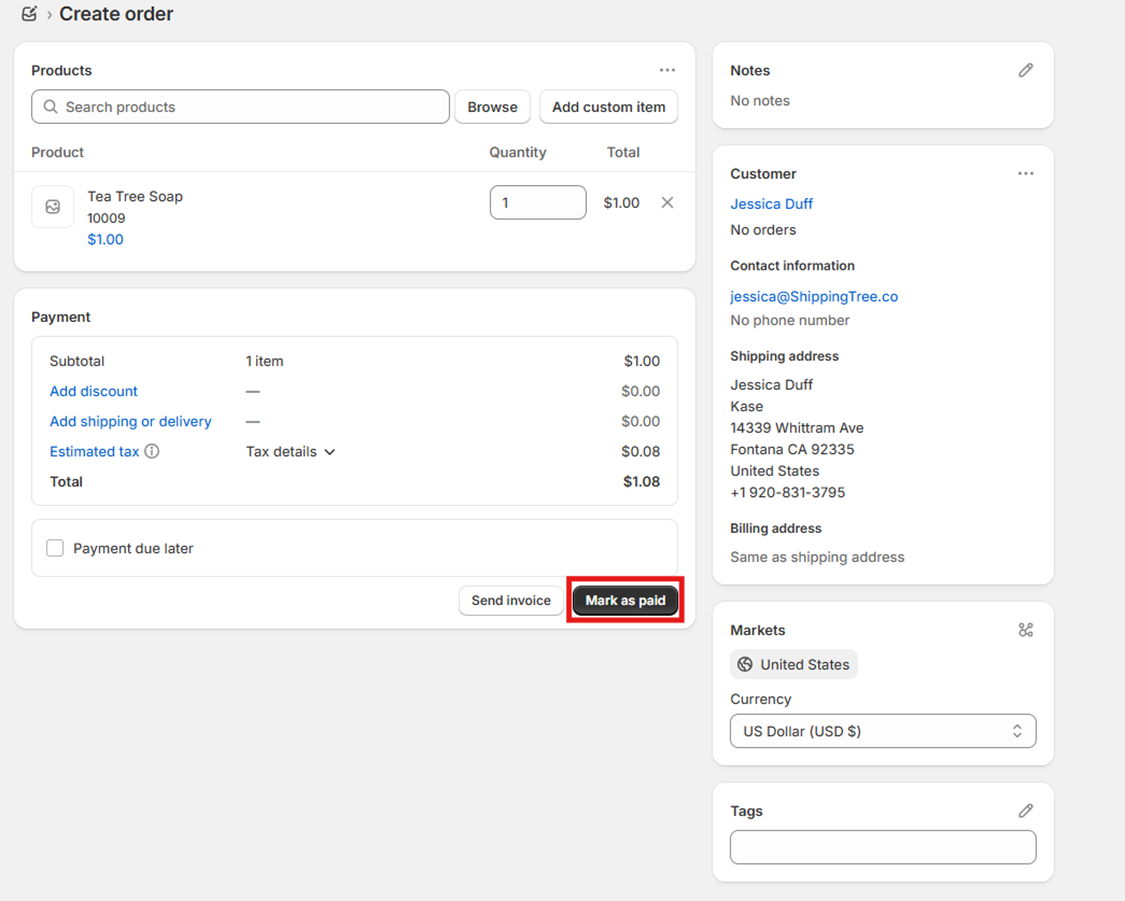
Click “Mark as Paid” to finalize the test order.
Step 7:
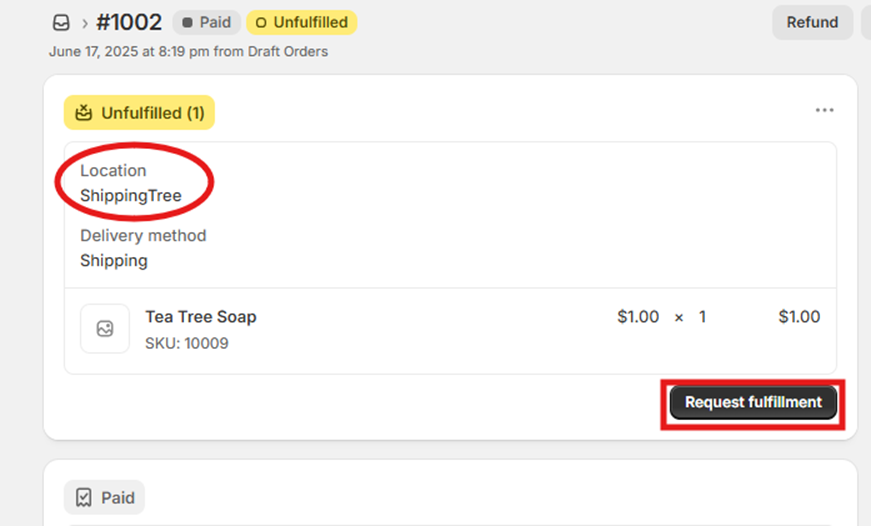
Confirm the order is assigned to the ShippingTree (Kase) location.
Once confirmed, click “Request Fulfillment.”
Step 8:
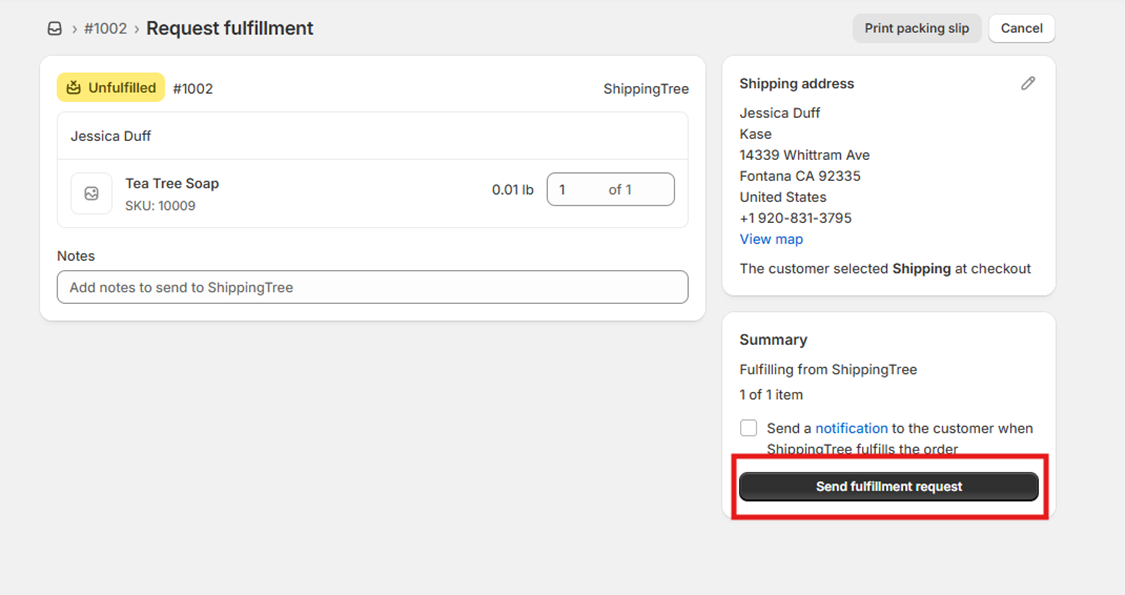
Click “Send Fulfillment Request” to push the order into our system. (If Shopify takes you to the additional page you must complete this step, if not, you can check the Kase app to ensure the order came over)
Step 9:
📣 Notify your onboarding specialist once all test orders have been submitted.
Let them know:
If you'd like the orders to be physically shipped,
OR
- If you'd prefer the item/s be returned to stock and the order canceled once testing is complete.
💡 Testing Best Practices
- ✅ Create one test order per shipping method mapped into Kase.
- ✅ Create one test order per pack-out scenario (e.g., 1 unit, 2 units, 4 mixed SKUs, etc.)
- ✅ Let your onboarding specialist know if any SKUs require custom packaging or handling.
📸 What Happens Next?
Our team will package and process each order.
We’ll send you photos of the pack-out for your review.
Once you approve, we’ll:
- Add images to our internal Pack-Out SOP
- Finalize your packaging rules in the system
If you have any questions or need help creating the orders, please reach out to your onboarding specialist. We're here to help!
Comments
0 comments
Please sign in to leave a comment.