
If you’d like to automatically include a promotional item, insert, or gift with every order placed, our automation tool makes it quick and easy. Follow the steps below to set up an automation that will add a specific SKU to each order as soon as it’s created.
🔁 Step-by-Step Instructions
✅ Step 1: Open Automations
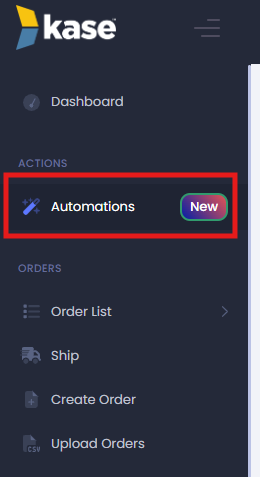
From the menu on the left side of the screen, select “Automations.”
📦 Step 2: Set the Condition
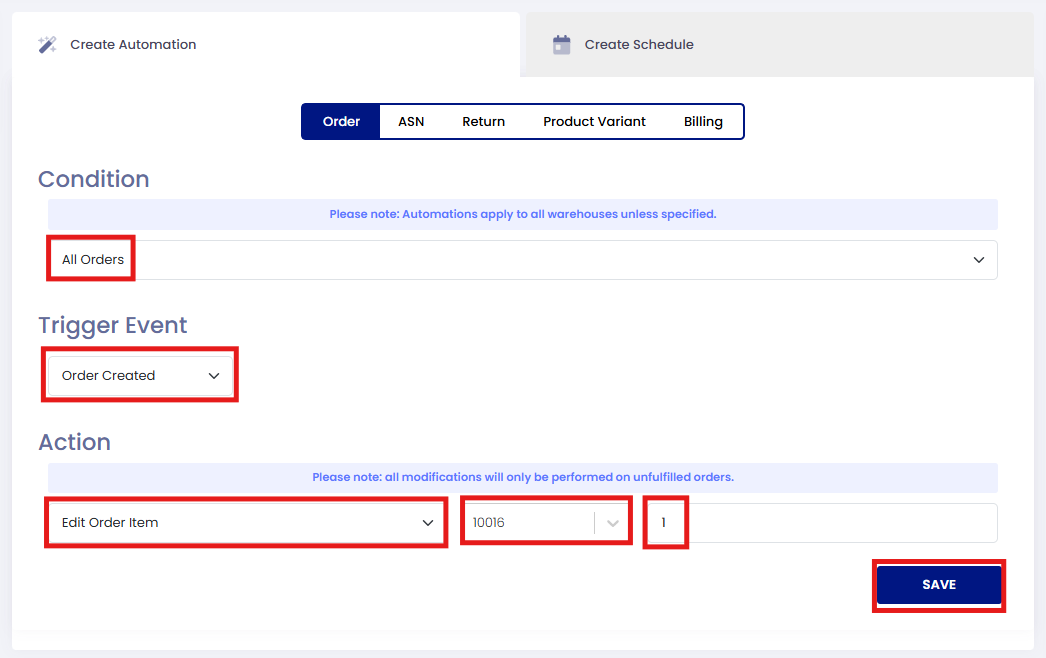
In the “Condition” field, choose:
All Orders
🔔 Step 3: Set the Trigger Event
In the “Trigger Event” field, select:
Order Created
✏️ Step 4: Set the Action
Under “Action,” choose:
Edit Order Item
🆔 Step 5: Enter the SKU to Be Added
In the SKU field, enter the exact SKU you want automatically included in every order.
🔢 Step 6: Set the Quantity
Enter the quantity of the SKU to be added (typically “1” for a single insert or promo item).
💾 Step 7: Save Your Automation
Once all fields are filled out, select SAVE to activate the automation.
Comments
0 comments
Please sign in to leave a comment.