
What is Two-Factor Authentication?
Every time you log in to your Kase account, you will be asked to provide a second form of authentication. This is called two-factor authentication (2FA). This provides an additional level of security for your account.
How do 2FA Apps Work?
One of the options for 2FA is setting up a 2FA app of your choosing that provides one-time passcodes. After you enter your email and password on the login screen, you'll be prompted for a 6-digit 2FA code to authenticate your identity. These temporary codes are generated by a 2FA app, and usually reset every 15-30 seconds. This makes them more secure than text message codes because they require you to have a physical device in your possession at the moment of login.
Setting Up Your 2FA App
You can choose from a few third-party 2FA apps. Here are a few we like and work with our authentication system:
- Google Authenticator (App Store | Google Play)
- Authy (App Store | Google Play)
Here is an example of how you would setup Google Authenticator:
-
Open Google Authenticator and click the + button in the bottom right corner. Then select Scan a QR code on the next page (additionally, you can click Add a code).
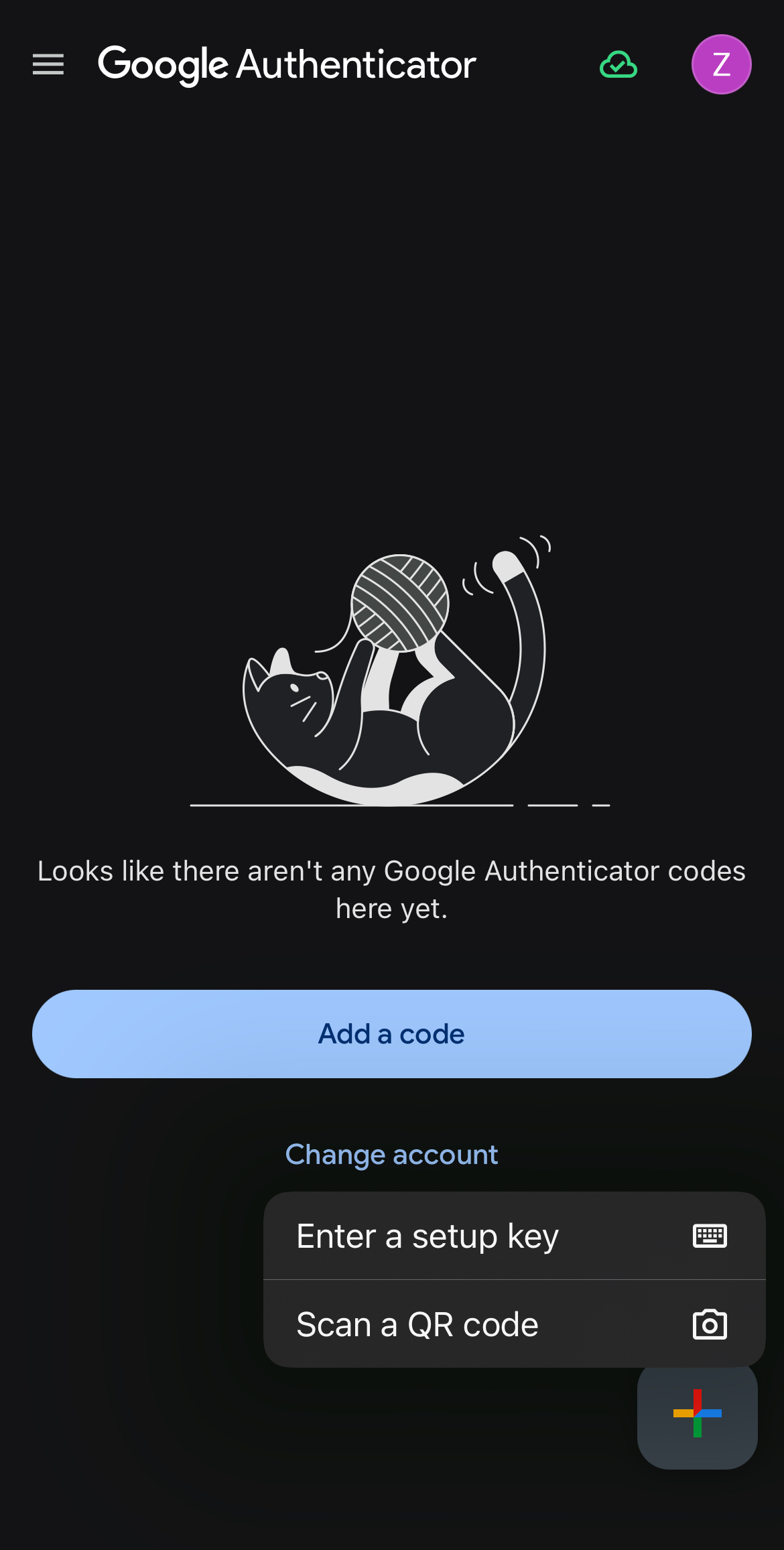
- Once your phone's camera is turned on, scan the QR code displayed on the One-Time Password Setup page on Kase.
- Once scanned, a new code generator should appear on your Google Authenticator app called ShippingTree. Enter this code into the field labeled 6-digit Code from Authenticator App on ShippingTree and click Submit.
- You're all set!
Using Your 2FA App for Login
- If you wish to use this method when logging in, make sure it is marked as your primary method (as seen in the image below) on your Profile Page. When marked as your primary method, you will need to use Google Authenticator app every single time you need to log back into Kase.

If your 2FA app/One-Time Password does not appear to be setup correctly, please try again or reach out to customer service.
Note: If you remove One-Time Password setup on your profile page you will need to redo the above tutorial. It is recommended to delete your old code generator on your authenticator app as you will not be able to re-use that code generator for future logins.
Comments
0 comments
Please sign in to leave a comment.