
Stock Alerts help you stay ahead of low inventory by sending automatic email notifications when stock reaches the threshold you set. Follow the steps below to create Stock Alerts for specific SKUs or your entire catalog.
How to Set Up Stock Alerts
Navigate to Stock Alerts
Click the ⚙️ Tog Wheel at the top right of the screen.

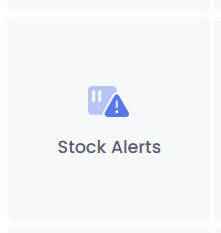
Select Stock Alerts from the menu.
Add a New Alert Rule
Click Add Rule.
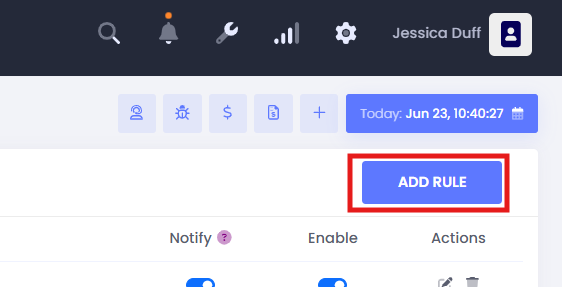
Configure Your Stock Alert Rule
You’ll see several options to customize your alert:
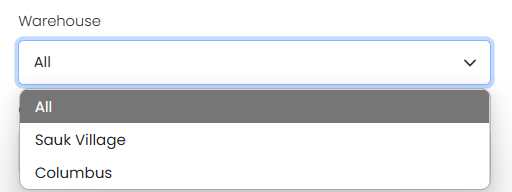
Warehouse Selection
- Choose whether this alert applies to All Warehouse Locations or a Specific Warehouse Location.
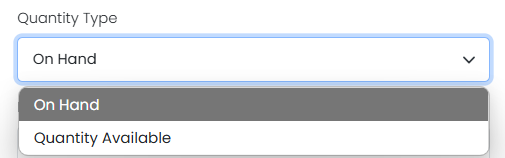
Quantity Type
- Select whether the alert should monitor:
- Quantity on Hand (total physical units)
- Quantity Available (sellable units after accounting for holds or reserves)
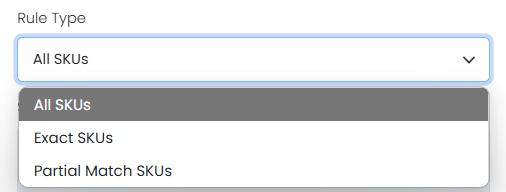
Rule Type
- Decide what SKUs this alert applies to:
- All SKUs: Applies to all products in the selected warehouse(s).
- Exact SKUs: Applies only to the specific SKU(s) you enter.
Partial Match SKUs: Applies to SKU(s) that partially match what you enter.
(Insert Screenshot for each option above)
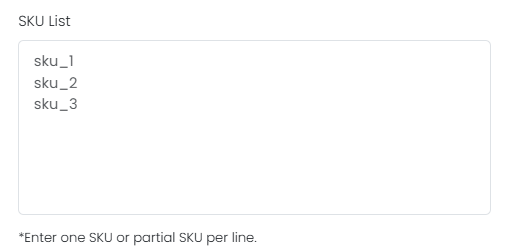
Enter SKUs (if applicable)
- If you selected Exact SKUs or Partial Match SKUs, enter the SKUs in the SKU List field.
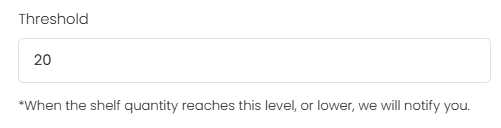
Set Your Threshold
- Enter the inventory level that will trigger the alert.
- Example: Enter "20" to be notified when the stock reaches 20 units or lower.
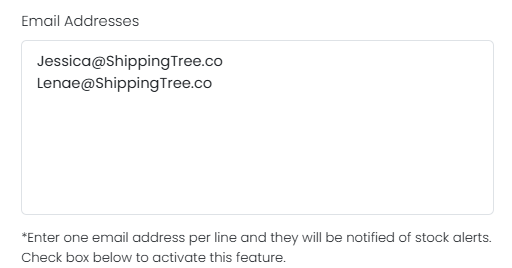
- Add Email Recipients
- Enter one email address per line.
- These contacts will receive the stock alert notifications.
Activate the Alert
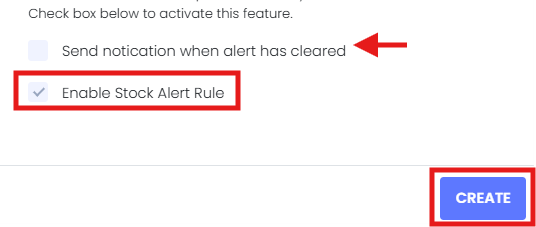
- Check the box for Enable Stock Alert Rule to turn the alert on.
- You can also check Send notification when alert has cleared if you want to be notified when stock levels return above the threshold.
Save Your Alert
- Click Create to save your Stock Alert rule.
That's It!
Once your Stock Alert is created, our system will automatically monitor your inventory and send email notifications based on your settings. You can always return to this page to edit or delete your Stock Alert rules as needed.
Need Help?
If you have questions or need assistance setting up Stock Alerts, our Support Team (Kase-Fulfillment@Kase.com) is happy to help!
Comments
0 comments
Please sign in to leave a comment.